

code coverage intellij: Mastering IntelliJ Code Quality
Seeing your code coverage in IntelliJ IDEA is the quickest way to figure out what your tests are actually doing. It pulls back the curtain, showing you exactly which parts of your code are getting hit by your test suite and—more importantly—which parts aren't.
Why Code Coverage in IntelliJ Is a Game-Changer
Let's stop thinking about code coverage as just another metric for a report. It's a powerful diagnostic tool, one that can fundamentally change how you write and test your code. When you visualize test coverage directly inside IntelliJ IDEA, you get immediate, actionable feedback while you're still in the zone. This isn't about chasing a high percentage; it’s about building a proactive quality mindset from the ground up.
This tight integration closes the gap between writing code and knowing it's reliable. By seeing what your tests truly cover, you can write smarter tests, find bugs earlier, and build a much healthier codebase. The evolution of IDEs has made this process incredibly insightful, something we explore more in our guide on AI-powered IDEs.
The Power of Visual Feedback
Those red and green gutters next to your code aren't just for decoration—they instantly tell you a story. With a quick glance, you can spot critical gaps in your test suite.
This visual approach helps you identify:
- Untested Logic: Pinpoint entire methods or specific conditional blocks that have zero test coverage.
- Dead Code: Discover dusty corners of your application that are never executed and could probably be deleted.
- Complex Branches: Zero in on tricky
if-elsechains orswitchstatements that need more rigorous testing.
The real win with code coverage isn't hitting 100%. It's about using the data to make informed decisions and focus your testing efforts where they'll have the biggest impact on quality.
IntelliJ IDEA really shines here, supporting both its native coverage runner and JaCoCo, a widely-used third-party tool. It breaks down coverage into percentages for classes, methods, lines, and branches. For example, you might see 85% line coverage but only 72% branch coverage—a clear signal that some critical conditional logic is flying blind.
Covered lines are marked green, partially covered lines (like an if statement where only one branch is tested) turn yellow, and completely uncovered lines are flagged in red. This makes the gaps impossible to ignore. This built-in functionality has cemented its place as an essential tool for any team serious about maintaining high code quality. You can dive deeper into IntelliJ's coverage tools from JetBrains to learn more.
Setting Up Your First Coverage Run
Getting code coverage up and running in IntelliJ is refreshingly straightforward. You don't need to create a brand-new configuration from scratch; the quickest way in is to just modify a test configuration you already use for your JUnit or TestNG suites.
Find a test class or method you want to check, give it a right-click, and instead of the usual "Run," select "Run with Coverage." That's it. IntelliJ will fire up your tests and immediately pop open the Coverage tool window, laying out all the results for you. For a quick first look, this one click is often all you need.
This simple action kicks off the core feedback loop for improving your code's quality: you spot the gaps, write tests to fill them, and steadily build a more reliable application.
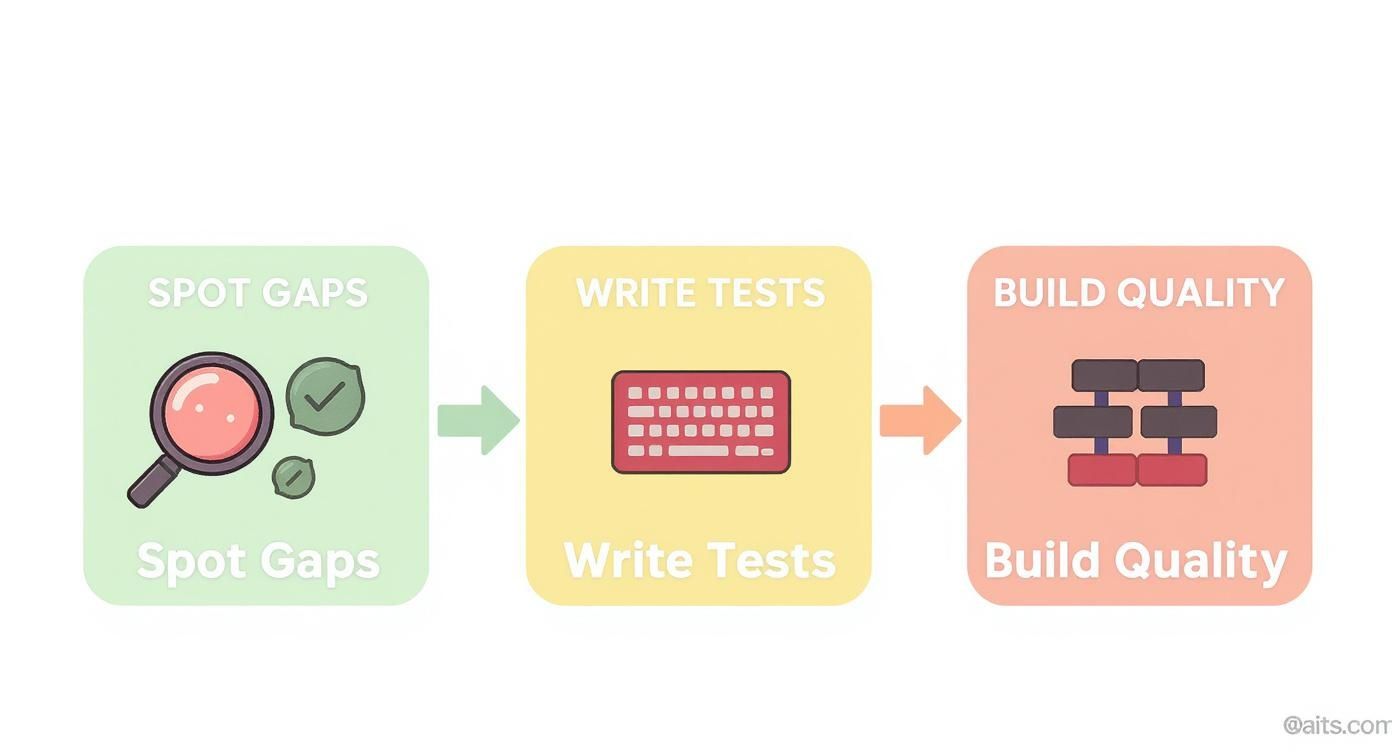
This workflow is powerful because it turns what could be just a bunch of numbers into a clear, actionable roadmap for making your codebase stronger.
Choosing Your Coverage Runner
When you run your tests with coverage, IntelliJ uses a "coverage runner" in the background to instrument your code and see what gets executed. You've got two main options here, and each has its place.
You can pick your runner by editing your test configuration (Run > Edit Configurations...) and heading over to the "Code Coverage" tab. You'll see a simple dropdown menu to make your choice.
Here's a quick rundown of your options and when to use them.
IntelliJ Runner vs JaCoCo Runner Comparison
This table should help you decide which coverage runner is the right fit for your immediate needs within IntelliJ IDEA.
| Feature | IntelliJ IDEA Runner | JaCoCo Runner |
|---|---|---|
| Speed & Performance | Extremely fast. It's optimized for the IDE and perfect for quick, iterative checks during development. | Slightly slower. The overhead is minor but noticeable compared to the native runner. |
| Integration | Seamless. It's built directly into IntelliJ, providing a smooth, integrated experience with no extra setup. | Requires minimal setup. You just select it from a dropdown, but it's an external tool integrated into the IDE. |
| Use Case | Daily development. Ideal for developers who need instant feedback on their tests without leaving the IDE. | CI/CD alignment. Essential when your build server (like Jenkins or GitLab CI) uses JaCoCo for official reports. |
| Consistency | IDE-specific. The metrics are reliable within IntelliJ but might differ slightly from other coverage tools. | Industry standard. Ensures that the coverage numbers you see locally match exactly what your CI pipeline will report. |
| Key Advantage | Simplicity and speed. Nothing beats it for on-the-fly analysis while you're coding. | Report consistency. Guarantees that "it works on my machine" applies to your coverage metrics, not just your code. |
For most developers just starting out, the default IntelliJ IDEA runner is the way to go. It’s fast, simple, and gives you immediate feedback. You'll only need to switch over to JaCoCo when you have to make sure your local reports are perfectly aligned with what your team's official build process is producing.
Refining Your Configuration for Better Insights
A default run gets you in the door, but a little configuration goes a long way. Before you kick off your tests, spend a minute in the "Code Coverage" tab to fine-tune the settings. It’ll make your results much more precise.
First up, I highly recommend enabling branch coverage. Line coverage is a decent start, but it can easily fool you. A line with an if/else statement might show up as 100% covered even if your tests only ever executed the if block and completely ignored the else. Branch coverage eliminates this blind spot by checking that every possible path through your code has been tested, giving you a much more honest picture of your test suite's quality.
Next, make use of the package and class filters. Let's be real—your project is full of generated code, DTOs, or other boilerplate that you're never going to write tests for. By adding those packages to the exclude list, you clean up the noise in your report. This ensures the final code coverage percentage actually reflects the health of your critical business logic, turning it from a vanity metric into something genuinely useful.
How to Read and Interpret Coverage Reports
After you run your tests with coverage enabled, IntelliJ throws a ton of data at you. It can feel like a lot at first, but knowing how to read the visual cues and drill down into the numbers is what separates the pros from the amateurs.
The real skill in using code coverage in IntelliJ isn't just about clicking a button and seeing a percentage. It's about translating those numbers and colors into a concrete plan for making your tests better.
Once the run finishes, the Coverage tool window pops up with a high-level summary. You'll see percentages broken down by package, class, method, line, and even by branch. Think of this as the 30,000-foot view of your project's test health—it's perfect for quickly spotting entire modules or packages that are falling behind.
Navigating the Coverage Panel
This initial view gives you that project-wide perspective. From here, you can start expanding the tree to inspect individual packages and classes. I always tell my team to focus on two key metrics right off the bat: line coverage and branch coverage.
- % Line: This one's straightforward. It tells you what percentage of your code's executable lines were actually touched by a test. It’s a good starting point, but don't let a high number lull you into a false sense of security.
- % Branch: Now this is a much stronger indicator of test quality. It measures how many of your conditional branches (think
if/elseblocks,switchstatements) had all their possible paths tested. A high line coverage with low branch coverage is a huge red flag.
From this panel, just double-click any class, and IntelliJ will zip you right over to the source code. That's where the real investigation begins.
This is what a typical detailed panel looks like. It gives you a clean, hierarchical breakdown, making it incredibly easy to see where your weak spots are.
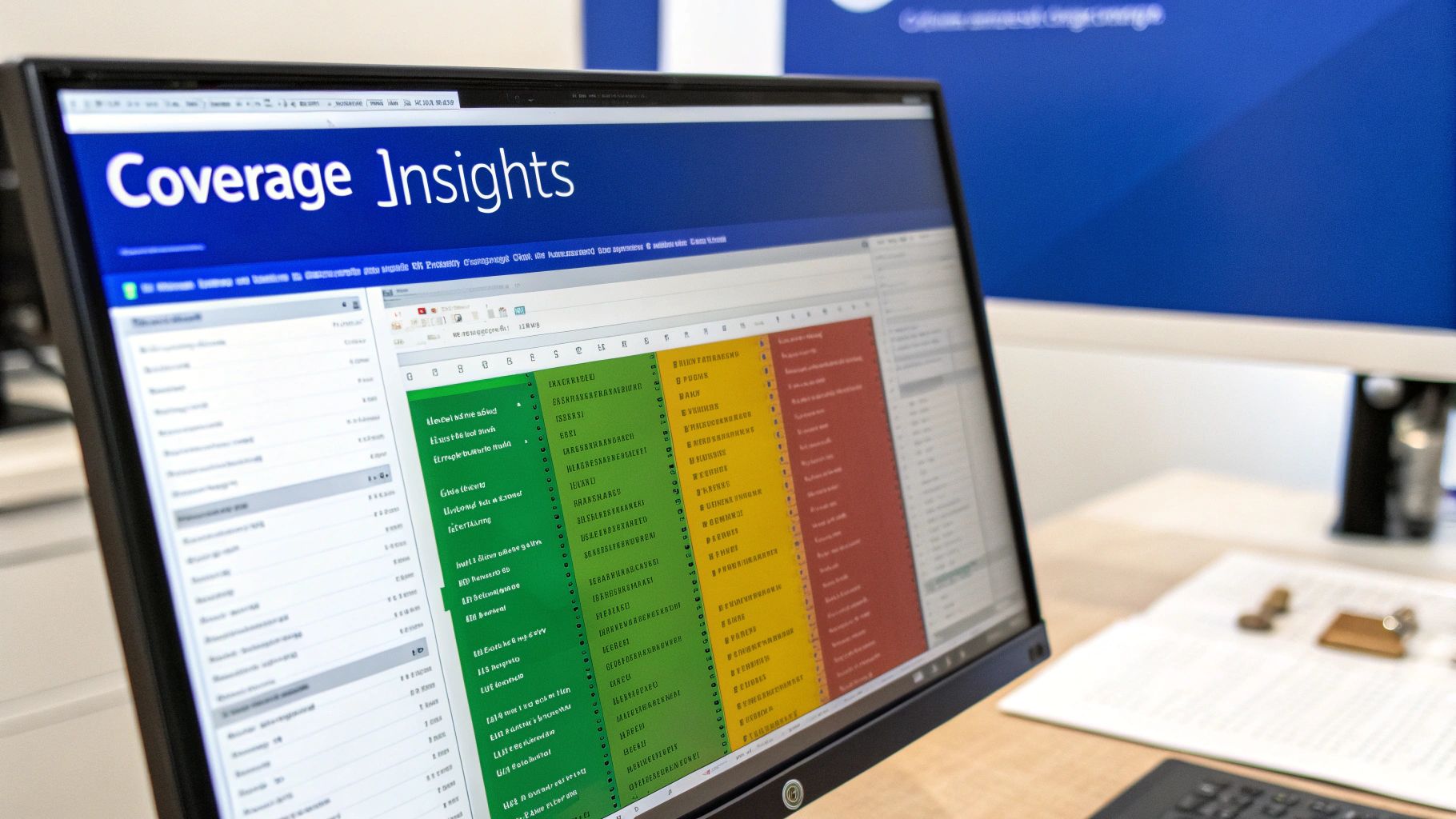
As you can see, the data is laid out so you can spot under-tested areas almost instantly, without having to dig through logs.
Understanding the Color-Coded Editor
When you open a file after running coverage, IntelliJ overlays colors right in the editor's gutter, next to the line numbers. This is where the tool really shines, in my opinion. It's instant, line-by-line feedback.
The color scheme is simple and super intuitive:
- Green: This line was fully covered by your tests. If it was a conditional, all its branches were hit. Good to go.
- Yellow: This line was only partially executed. You'll see this all the time on
ifstatements where your tests only cover thetruepath but completely ignore thefalseone. - Red: This line was never touched by any test. These are your most glaring gaps and where you should focus your attention first.
Let's say you have a utility class that validates some user input. After a coverage run, you might see the happy path lit up in green, but the catch block for a NullPointerException is glowing bright red. That's an immediate signal that you never tested what happens when someone passes in null—a classic edge case you absolutely need to cover.
The goal isn't just to make everything green. That's a fool's errand. Instead, use the red and yellow markers as a road map to prioritize writing new tests that actually improve your code's reliability.
Generating Actionable HTML Reports
The in-IDE view is fantastic while you're actively coding, but you'll often need something you can share—for a pull request, a team review, or your CI pipeline. IntelliJ has you covered.
Head back to the Coverage tool window, click the little gear icon, and select "Generate Coverage Report." This exports a slick, self-contained HTML report that you can open in any browser.
This report mirrors the detailed, color-coded view you get in the IDE, which makes it an excellent artifact for getting the whole team on the same page. It turns your local code coverage IntelliJ analysis into a shareable asset for tracking quality improvements over time.
Advanced Techniques for More Accurate Analysis
Once you're comfortable running basic coverage scans, it's time to level up. Raw coverage numbers can be dangerously misleading, especially if they include boilerplate code you never intended to test. Gaining control over what gets measured is the key to turning your code coverage in IntelliJ from a vanity metric into a sharp diagnostic tool.
The most common source of noise? Auto-generated code. Things like Lombok, MapStruct, or other code generators churn out dozens of getters, setters, and constructors that have no real business logic. Including them in your analysis artificially inflates your line count and can easily skew your percentages, hiding real gaps in the code you actually care about.
Excluding Packages for a Cleaner Report
Luckily, IntelliJ makes it easy to filter out all that noise.
Just head back to your test configuration (Run > Edit Configurations...), click over to the "Code Coverage" tab, and look for the package and class filter options. This is where you can tell the coverage engine exactly what to ignore.
For instance, to exclude all your DTOs (Data Transfer Objects) and generated mapper classes, you could add patterns like:
com.myapp.dto.*to skip every class inside thedtopackage.com.myapp.mappers.*Implto specifically ignore the implementation classes generated by MapStruct.
By trimming this fat, your coverage reports instantly become more meaningful. The percentages will now accurately reflect the test health of the code you've actually written, letting you focus your efforts where they'll make a real difference.
Pinpointing Test Impact with Per-Test Coverage
Have you ever stared at a green line in the gutter and wondered, "Okay, great, but which test is actually covering this?" This is where the Per-Test Coverage feature, available in IntelliJ IDEA Ultimate, becomes a total game-changer.
After a coverage run, this tool lets you click on a specific line in your editor and see a popup listing every single test that executed it. This is incredibly powerful for a few reasons:
- Spotting Redundant Tests: If a simple getter is being hit by twenty different tests, you might have an opportunity to streamline your test suite and speed things up.
- Refactoring with Confidence: Knowing the exact tests covering a tricky piece of logic gives you a safety net. You can refactor it and then run that precise subset of tests to immediately verify your changes didn't break anything.
- Untangling Complex Logic: For intricate business rules, seeing the list of tests helps you confirm that every edge case and scenario you intended to cover is actually being checked.
Per-test coverage shifts your thinking from a simple "Is this line covered?" to the much more important question: "Is this line covered by the right tests?" This deeper insight is what separates a brittle test suite from a resilient and maintainable one.
To truly master this, you need to develop strong analytical abilities. Learning how to improve your critical thinking skills can significantly sharpen your approach to interpreting these advanced reports.
Aligning with Your Build Tools
One last thing: consistency is king. Your local environment and your CI/CD pipeline need to be on the same page.
If you're using Maven or Gradle, your build scripts likely have their own JaCoCo configurations, complete with specific exclusions and settings. You need to make sure your local IntelliJ runs are playing by the same rules as your CI builds.
While IntelliJ doesn't automatically import JaCoCo exclusions from your pom.xml or build.gradle, you can (and should) manually replicate them in the run configuration's exclusion list. Taking a few minutes to sync these settings completely eliminates the dreaded "but the coverage was fine on my machine!" conversation. Everyone on the team works from a single source of truth.
Making Code Coverage Part of Your Workflow
Getting a code coverage report is easy. The real win, though, comes from weaving that data into your team's daily development rhythm. When quality metrics are visible and tracked consistently, they stop being a chore and become a core part of how you build software. The goal is to make code coverage in IntelliJ a proactive tool for improvement, not a reactive tool for assigning blame after the fact.
This all starts with a mindset shift. Stop chasing a magic number. Obsessing over 100% coverage often just leads to writing useless tests for trivial code. Instead, focus on the trends. A sudden dip in coverage after a new feature gets merged is a much stronger signal than a static percentage. It helps you spot quality regressions early before they snowball into bigger problems.

From Local Analysis to CI Visibility
Running coverage locally in IntelliJ is fantastic for getting that immediate feedback loop while you're coding. But for the whole team to stay aligned on quality, everyone needs to see the numbers. That’s where your Continuous Integration (CI) pipeline comes in.
Most CI/CD platforms, whether you're using Jenkins, GitLab CI, or GitHub Actions, have plugins ready to consume JaCoCo XML reports. The workflow is pretty straightforward:
- Tweak Your Build: First, configure your Maven or Gradle build to generate a JaCoCo report whenever it runs the
testphase. - Archive the Report: Your CI job runs the tests and simply saves the resulting XML or HTML report as a build artifact.
- Display the Data: The CI platform's plugin grabs that report, parses it, and displays the coverage metrics right on the build dashboard or even inside a pull request.
This simple integration turns quality into a shared responsibility. When a developer submits a pull request that tanks the overall coverage, that information is front and center for everyone to see. It’s not about shaming anyone; it’s about starting a conversation: "Hey, should we add a few more tests here?"
Setting Realistic Coverage Targets
One of the oldest debates in software is, "What's a good coverage percentage?" The honest answer? There is no magic number. A blanket 80% target is totally meaningless if the other 20% of untested code contains your app's most critical business logic.
A much smarter strategy is to set targets based on how critical the code is.
- Critical Business Logic: For the code that handles payments, user data, or your secret sauce, you should aim high. Think 90%+, with a serious focus on branch coverage to catch all the edge cases.
- Standard Utilities: For helper classes and less complex components, a more standard target like 70-80% is usually perfectly fine.
- UI or Generated Code: This stuff is often a nightmare to test with unit tests anyway. Setting low or even no targets here is just being pragmatic.
Don't treat code coverage as a rigid pass/fail gatekeeper. Think of it as a diagnostic tool. A low number isn't a failure; it’s a valuable pointer showing you exactly where to focus your quality assurance efforts next.
This practical approach aligns with broader software development best practices that are all about focusing your effort where it delivers the most bang for your buck. By prioritizing the parts of your system that carry the most risk, you turn coverage from a simple score into a smart, risk-management tool that helps your team build more resilient software.
Common Questions About Code Coverage in IntelliJ
Even with a smooth workflow, a few questions always seem to pop up when you're digging into code coverage in IntelliJ. Let's tackle the most common ones I hear, so you can stop wrestling with the tool and start making smarter decisions about your tests.
Getting these details right is the difference between just chasing a percentage and actually understanding what your tests are—and aren't—doing.
What's the Real Difference Between Line and Branch Coverage?
This is, without a doubt, the number one point of confusion. Line coverage is simple: it just asks, "Did a test run this line of code?" It’s a decent first glance, but honestly, it can be dangerously misleading.
Think about a simple if statement. Line coverage might show it as green, but what if your tests only ever checked the true path? You'd have zero confidence that the false condition works correctly, yet the line is marked as "covered."
Branch coverage is where the real insight is. It checks that every possible path from a control statement—like an
if-elseblock, aswitchcase, or a ternary operator—has been executed. High branch coverage gives you much stronger confidence that the different logical flows in your methods have actually been tested.
Why Is My Code Coverage Percentage So Low?
Seeing a surprisingly low number can be deflating, but it usually points to one of a few common culprits. The first thing to check is that you're running the right tests for the code you're analyzing. It sounds obvious, but I've seen it happen where a developer accidentally runs a small, unrelated test suite and wonders why the coverage is 0%.
Next, peek at your run configuration. Make sure you haven't accidentally set up exclusion patterns that are filtering out the code you care about.
Most of the time, though, a low score means your tests are only hitting the "happy path." They're not triggering complex logic, especially error handling inside catch blocks or edge cases in your conditionals. This is where IntelliJ's color highlighting is your best friend. Hunt down those red lines—the ones that are completely uncovered—and write specific tests that target those exact scenarios.
Can I Get Decent Code Coverage in the Community Edition?
Absolutely. The IntelliJ IDEA Community Edition has fantastic, built-in support for code coverage. You can use both the default IntelliJ runner and the JaCoCo integration to run tests, see the reports in the coverage tool window, and get that super-helpful line-by-line highlighting right in the editor.
There are, however, a few advanced features you only get with the Ultimate Edition. These are nice-to-haves, not need-to-haves:
- Per-test coverage: This shows you which specific test is covering a line of code. It's incredibly useful for debugging complex test interactions.
- Tracking for new/modified code: It will highlight coverage changes specifically within your current changelist, so you know if your new code is tested.
For most day-to-day analysis, though? The Community Edition is more than powerful enough to give you the insights you need to improve your test suite's effectiveness.
At kluster.ai, we believe that code quality should be instant and integrated, not an afterthought. Our platform provides real-time AI-powered code review directly in your IDE, catching issues and enforcing standards before code ever leaves your editor. Stop chasing bugs and start shipping with confidence. Learn how kluster.ai can transform your development workflow.